Wireless Earbuds Out of Sync? The 30-Second Fix for Bluetooth Audio Lag
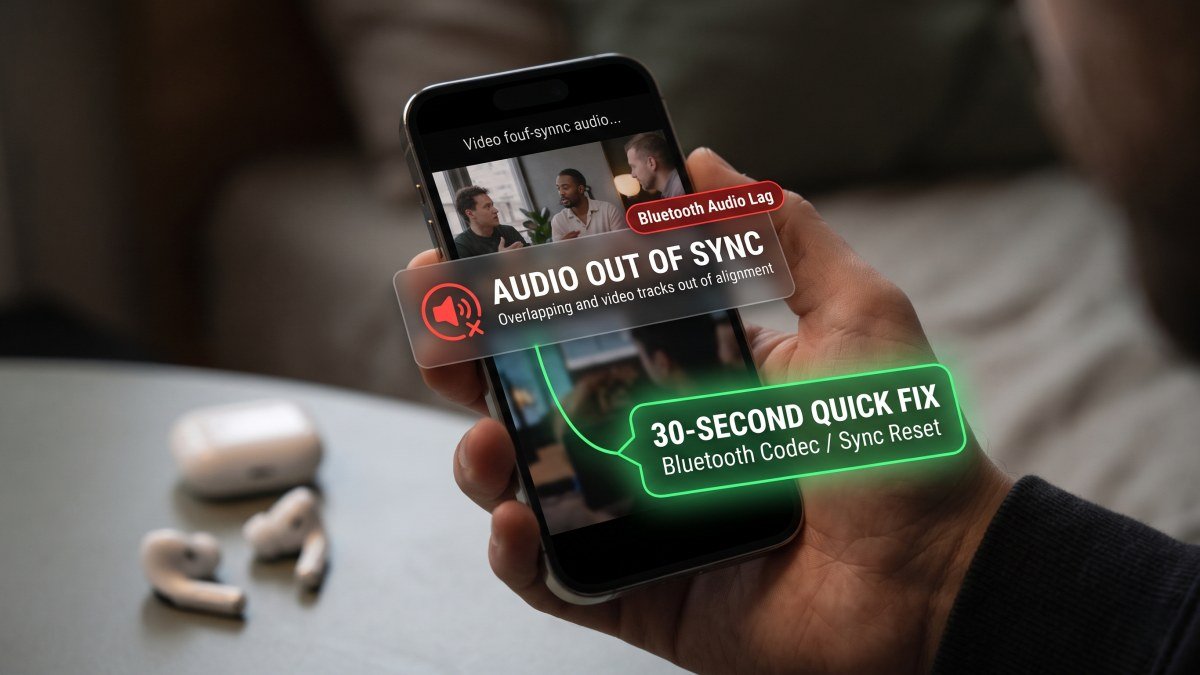
We have all been there. You are settling in for a long commute, you pop in your premium wireless earbuds, and you load up a highly anticipated movie on Netflix or a video on YouTube. But the moment the characters start speaking, the illusion shatters. The audio hits your ears a split second after their lips move. It feels like you are watching a badly dubbed foreign film, and once you notice that your wireless earbuds are out of sync with video, it is absolutely impossible to ignore.
Bluetooth latency is arguably one of the most universally irritating technological flaws in modern smartphones. Whether you are rocking a pair of high-end Apple AirPods Pro, Samsung Galaxy Buds, or a budget-friendly pair of Amazon basics, wireless audio delay can strike at any moment. Most users simply assume their earbuds are permanently broken and consider buying a new pair.
Do not throw your hardware in the bin just yet. Audio latency is rarely a hardware failure; it is almost always a software synchronisation mismatch between your phone and your earbuds. If you are desperately searching for a bluetooth audio lag fix, you do not need to wait for a miraculous software update. Here is the definitive, 30-second guide to eliminating earbuds delay on Android and iPhone, along with the deep-level settings you need to tweak to ensure perfectly synced audio.
Understanding the Enemy: Why Does Bluetooth Lag Exist?
Before diving into the fixes, it helps to understand why this delay happens in the first place. When you use traditional wired headphones, the audio signal travels instantly through the copper wire. With wireless earbuds, the process is far more complex.
Your smartphone has to take the digital audio from the video file, compress it using a specific software "codec," transmit it over radio waves, and then your earbuds have to catch that signal, decompress it, and turn it into physical sound waves. Every single step in this chain takes time. This processing time is called "latency."
Under perfect conditions, this process takes about 100 to 150 milliseconds. Modern streaming apps like YouTube and Netflix are actually coded to delay the video playback by that exact same amount, matching the visual to the delayed audio perfectly. However, when the communication channel gets interrupted, or when your phone defaults to a slow audio codec, the latency spikes to 300 or 400 milliseconds, and the app's compensation algorithm falls apart.
The 30-Second Fix for Android Users: Force a Faster Codec
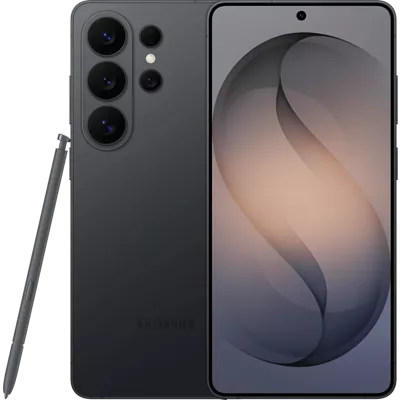
If you are using a modern Android device, such as the Galaxy S26 Ultra or the Pixel 11 Pro XL, the absolute best way to eliminate audio lag is to force your smartphone to use a faster, more efficient Bluetooth codec.
By default, Android often falls back on the SBC (Subband Codec), which is highly stable but notoriously slow. If your earbuds support AAC, aptX, or LDAC, you can force your phone to use these superior codecs via the hidden Developer Options.
Step-by-Step Android Fix:
- Unlock Developer Options: Navigate to Settings > About Phone. Scroll down to the Build Number and tap it rapidly seven times. You will see a prompt confirming that "You are now a developer!"
- Access the Hidden Menu: Go back to the main Settings menu and select System > Developer Options.
- Find Bluetooth Audio Codec: Scroll roughly halfway down the massive list until you find the "Networking" section. Tap on Bluetooth Audio Codec.
- Change the Codec: You will see a list of available codecs. If your earbuds support it, switch from SBC or "System Default" to Qualcomm aptX or AAC. AptX is specifically designed to minimise latency.
- Adjust A/V Sync (Optional): While in Developer Options, look for a toggle called Disable Bluetooth A2DP hardware offload. Toggling this on can sometimes force the phone to handle audio processing directly, clearing up severe sync issues.
Once you have changed these settings, restart your smartphone and reconnect your earbuds. In the vast majority of cases, the audio will instantly snap back into perfect synchronisation.
The Quick Fix for iPhone Users: Resetting the Handshake
Apple strictly controls the Bluetooth environment on iOS, meaning you cannot manually dive into developer settings and change codecs (Apple devices exclusively use the AAC codec for high-quality audio). However, iOS is highly prone to caching errors that cause audio desynchronisation over time.
If you are experiencing lag on your iPhone, the issue is likely rooted in a bloated Bluetooth cache or a corrupted connection handshake. If you find your phone is acting sluggish in general, you should also check our guide on how to clear system data on iPhone, as storage starvation can choke video playback performance.
Step-by-Step iOS Fix:
- Forget the Device: Open Settings > Bluetooth. Tap the small "i" icon next to your AirPods or third-party earbuds. Select Forget This Device.
- Hard Reset the Earbuds: If you are using AirPods, place them in the case, keep the lid open, and press and hold the button on the back for 15 seconds until the light flashes amber, then white. For other brands, check the manual for the factory reset protocol.
- The Toggle Trick: Before reconnecting, turn off your iPhone's Bluetooth completely. Wait 10 seconds, then toggle it back on. This flushes the temporary radio cache.
- Re-Pair and Test: Reconnect the earbuds as if they were brand new. Load up a YouTube video and watch the speaker's lips. The audio should now be perfectly aligned.
Is the App or the Internet to Blame?
If you have applied the hardware and software fixes above and the audio is still stuttering or lagging, the problem might not be your Bluetooth connection at all.
The Video Game Exception
If you only experience audio delay whilst playing high-intensity mobile games like Call of Duty: Mobile or PUBG, this is unfortunately completely normal. Video games render audio in real-time based on your physical inputs, meaning the software cannot pre-calculate a delay to compensate for Bluetooth latency. If gaming is your primary use case, you will need to purchase specific "Gaming Earbuds" that feature a dedicated 2.4GHz USB-C dongle to achieve zero-latency audio.
Wi-Fi Buffering Disguised as Audio Lag
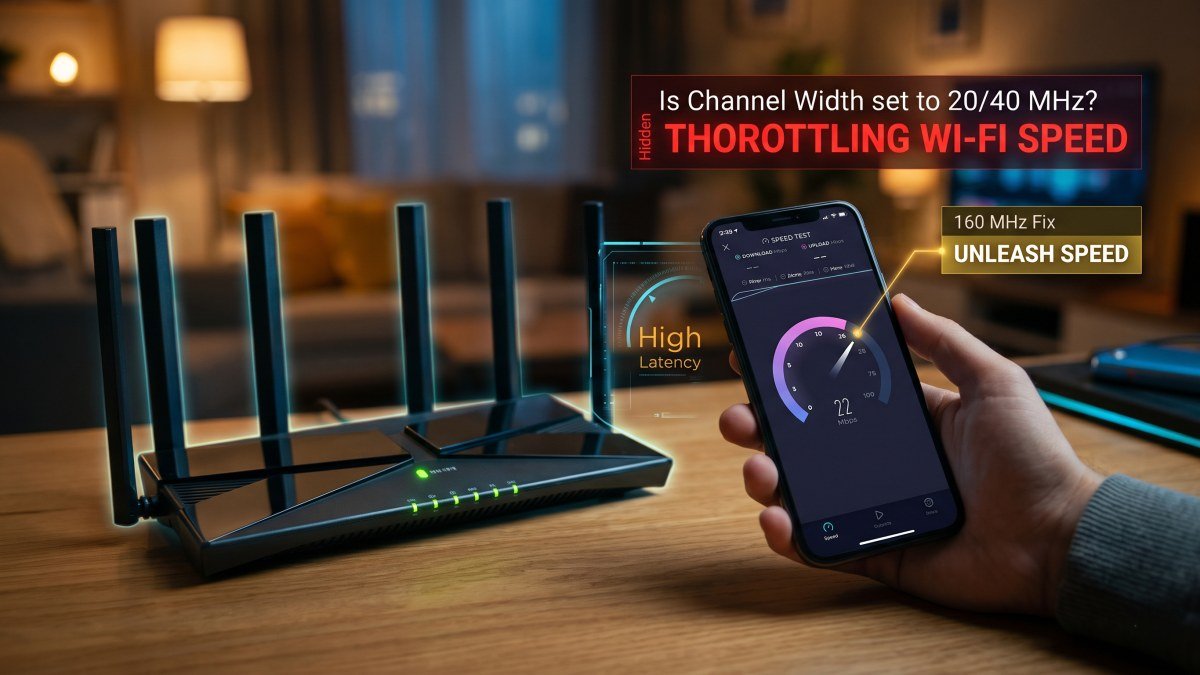
Sometimes, your wireless network is the true culprit. If your internet connection drops packets of data, the video stream might stutter while the audio stream continues playing, causing an immediate desynchronisation. If you suspect your home network is failing you, you should immediately review our guide on the hidden router setting that throttles Gigabit Wi-Fi. Expanding your channel width can eliminate the buffering that knocks your audio out of sync.
Hardware Degradation: When Is It Time to Upgrade?
Just like the smartphone battery calibration myth teaches us about lithium-ion degradation, the tiny batteries inside your wireless earbuds are highly susceptible to chemical ageing. If you have been using the same pair of earbuds for three or four years, the internal voltage may have dropped to a level where the tiny Bluetooth chips can no longer process data efficiently.
Furthermore, if you are experiencing one earbud dying significantly faster than the other, or one side lagging behind the other creating an "echo" effect, you are dealing with a classic case of TWS earbud uneven drain. When the master earbud (the one that connects directly to the phone) has a degraded battery, it struggles to relay the audio signal to the secondary earbud, causing massive latency spikes.
If your earbuds are more than three years old, a factory reset fails to fix the sync issues, and you are experiencing severe battery drain, the hardware has simply reached the end of its natural lifespan.
The Final Verdict on Wireless Audio
Bluetooth technology is incredibly convenient, but it remains an imperfect science. Interference from microwaves, smart home hubs, and crowded public transport can all temporarily disrupt the synchronisation of your audio stream.
However, by understanding how to force Android into a faster audio codec and knowing how to properly purge a corrupted iOS Bluetooth cache, you can eliminate 95% of the lag you encounter on a daily basis. The next time the dialogue in your favourite streaming series feels disconnected, do not suffer through the delay. Pause the video, execute this 30-second fix, and get your audio back in perfect harmony.