iPhone Storage Full? The Secret Way to Clear 'System Data' Without Factory Resetting
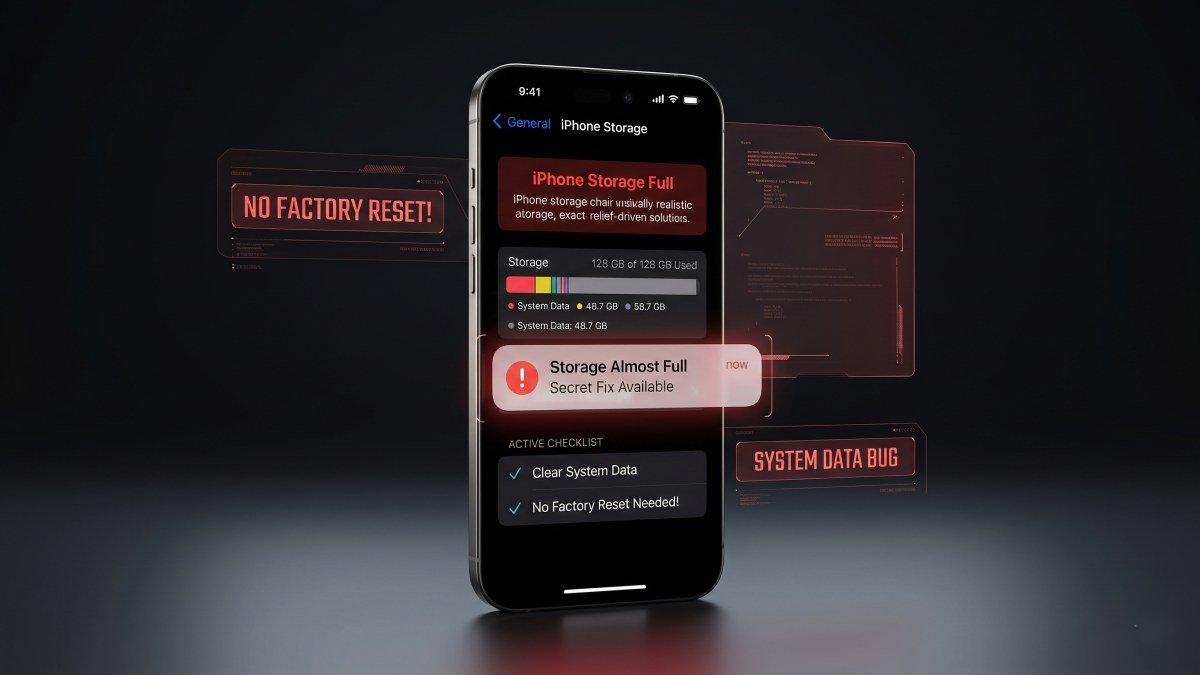
You are about to capture a crucial video, download a boarding pass, or install a major iOS update when the most dreaded notification in the Apple ecosystem suddenly blocks your screen: "iPhone Storage Full." Frustrated, you navigate to your device settings to delete some old photos or unused apps, only to discover a massive, unclickable grey bar at the bottom of the screen labelled "System Data". For millions of users, this mysterious category routinely inflates to consume 20GB, 30GB, or even 50GB of precious internal storage.
When searching for a permanent iOS storage fix, the standard advice floating around the internet is extreme and terrifying: completely wipe the device, perform a factory reset, and restore from an iCloud backup. If you are already dealing with iPhone 18 Pro Max problems or simply do not have the time to sit through a multi-hour data restoration process, a factory reset is the absolute last resort.
Fortunately, you do not have to wipe your phone to reclaim your space. Apple has built-in maintenance routines that you can manually trigger if you know the right workarounds. If you are desperately wondering how to clear system data on iPhone safely and quickly, here is the definitive, step-by-step guide to forcing a massive cache dump without losing a single photo, message, or password.
What Actually is "System Data" on an iPhone?
Before you can clear the blockage, it is vital to understand what the iPhone storage full system data category actually contains. Apple uses this broad label as a catch-all bin for files that do not neatly fit into Apps, Media, iOS, or Photos.
When you stream a 4K film on Netflix, listen to a heavy playlist on Spotify, or scroll through high-definition videos on TikTok, these applications download massive temporary files (caches) to ensure smooth playback without constant buffering. Instead of allocating this cache to the specific app, iOS often lumps it into System Data.
Additionally, this grey bar houses Siri voice models, offline translation dictionaries, system error logs, Safari website data, and heavily bloated diagnostic files. In a perfectly optimised system, iOS is supposed to automatically delete these temporary files when your storage runs low. However, the background algorithm frequently fails, causing the cache to infinitely stockpile until the phone physically cannot function.
The "Date Trick": The Secret Method to Force a Cache Dump
If your System Data is sitting at 30GB or higher, the most effective, non-destructive workaround is the "Date Trick." This method tricks the internal iOS maintenance algorithm into believing that months have passed, forcing it to automatically purge expired temporary files and old system logs.
Step-by-Step Instructions:
- Close All Apps: Swipe up from the bottom of your screen and force-close every single open application in your multitasking tray.
- Disable Network Connections: Open the Control Centre and turn on Aeroplane Mode. Ensure Wi-Fi and Bluetooth are completely toggled off to prevent syncing errors while you manipulate the time.
- Change the Date: Navigate to Settings > General > Date & Time. Toggle off "Set Automatically". Manually scroll the calendar forward by exactly one month.
- Wait and Lock: Lock your iPhone screen and leave the device completely untouched for exactly 60 seconds. Do not wake the screen.
- Restart the Device: Unlock the phone and perform a standard restart (hold the Power and Volume Down buttons, then slide to power off). Wait 30 seconds, then power it back on.
- Revert the Date: Go back to Settings > General > Date & Time and toggle "Set Automatically" back on. Turn off Aeroplane Mode.
After completing these steps, wait about five minutes for the storage index to recalculate, then check Settings > General > iPhone Storage. Users frequently report this simple time-travel trick instantly clearing 10GB to 15GB of trapped System Data.
Targeting App-Specific Hidden Caches
If the Date Trick did not clear enough space, the next step is manually flushing out the third-party applications that notoriously abuse the System Data category. Social media and streaming apps are the primary culprits.
1. Offload Heavy Applications
Unlike deleting an app, "Offloading" deletes the core application software while preserving all your login details, saved drafts, and personal data. This also violently flushes the app's hidden cache out of the System Data bin.
Go to Settings > General > iPhone Storage. Scroll down to heavy apps like TikTok, Instagram, Discord, or Spotify. Tap the app and select Offload App. Once it is offloaded, tap Reinstall App. You will notice the app's storage footprint shrinks dramatically without you losing any personal data.
2. Erase the Safari Cache
If you have hundreds of tabs open or browse heavily, Safari caches massive amounts of website data (images, scripts, cookies) that get dumped into System Data. Go to Settings > Apps > Safari. Scroll down and tap Clear History and Website Data. Ensure you select "All History" and execute the clear. This alone can free up 2GB to 4GB of trapped storage.
3. Delete Lingering OTA Updates
Sometimes, your iPhone will download a massive 6GB iOS software update in the background but fail to install it because you lacked storage. This dormant update file sits invisibly inside System Data. Open Settings > General > iPhone Storage, look for an iOS update file in the app list, tap it, and delete it.
The Force Restart Procedure
If your System Data is bloated because of corrupted system error logs (a common issue on early builds of the Apple iPhone 17 and 18 series), a Force Restart will dump the temporary RAM and force the operating system to discard broken diagnostic files.
To execute a proper Force Restart (different from turning the phone off and on):
- Quickly press and release the Volume Up button.
- Quickly press and release the Volume Down button.
- Press and hold the Power button. Do not let go when you see the "Slide to Power Off" screen. Keep holding the button until the screen goes entirely black and the silver Apple logo reappears.
Comparison of Storage Fixes
To help you decide which troubleshooting step to take first, here is a breakdown of the safest and most effective methods for reclaiming your storage:
| Troubleshooting Method | Time Required | Average Storage Reclaimed | Risk of Data Loss |
|---|---|---|---|
| The Date Trick | 3 Minutes | 5GB to 15GB | Zero. Totally safe if offline. |
| Offloading Social Apps | 5 Minutes | 2GB to 8GB | Zero. Preserves all login data. |
| Clearing Safari Data | 30 Seconds | 1GB to 4GB | Low. Closes current tabs. |
| Factory Reset (Last Resort) | 2+ Hours | Absolute Maximum Possible | High. Requires full iCloud backup. |
Swipe sideways to see all table columns →
- Time Required
- 3 Minutes
- Average Storage Reclaimed
- 5GB to 15GB
- Risk of Data Loss
- Zero. Totally safe if offline.
- Time Required
- 5 Minutes
- Average Storage Reclaimed
- 2GB to 8GB
- Risk of Data Loss
- Zero. Preserves all login data.
- Time Required
- 30 Seconds
- Average Storage Reclaimed
- 1GB to 4GB
- Risk of Data Loss
- Low. Closes current tabs.
- Time Required
- 2+ Hours
- Average Storage Reclaimed
- Absolute Maximum Possible
- Risk of Data Loss
- High. Requires full iCloud backup.
When is a Factory Reset Actually Necessary?
In 95% of cases, the tricks outlined above will clear enough space to get your phone functioning smoothly again, allowing you to record video, download essential apps, and apply necessary security patches. However, if your System Data refuses to budge and remains stubbornly locked at 50GB+, you are likely dealing with a deep file system corruption that the algorithm simply cannot overwrite.
This frequently happens if a previous iOS update failed mid-installation, leaving fragmented, undeletable core files scattered across the storage drive. If you are forced into this corner, you must ensure your phone is fully backed up to iCloud or a Mac before executing an "Erase All Content and Settings" command. When you restore the phone from the cloud backup, the corrupted System Data will be left behind, and your device will finally breathe freely again.
To prevent this bloat from returning, make it a monthly habit to clear your Safari cache and offload heavy streaming applications. By proactively managing your digital footprint, you will never have to deal with the dreaded "Storage Full" notification during a critical moment again.