How to Use Your iPad or Android Tablet as a Second Monitor for Windows and Mac
If you are a remote professional trying to maximize your work-from-home productivity, a dual-screen setup is essential. Instead of spending hundreds of dollars on a bulky new desktop display, you can instantly use an iPad as a second monitor for Windows or use an Android tablet as a second screen for Mac. The hardware you already own sitting on your coffee table is more than capable of acting as a high-resolution, wireless external monitor.
Whether you are coding on a MacBook Pro 14-inch or managing massive spreadsheets on a Windows laptop, this tablet second monitor setup guide provides the exact steps to seamlessly extend your desktop. Here are the most reliable, lag-free methods for every operating system combination to get your second screen running in under five minutes.
Method 1: iPad to Mac (Apple Sidecar)
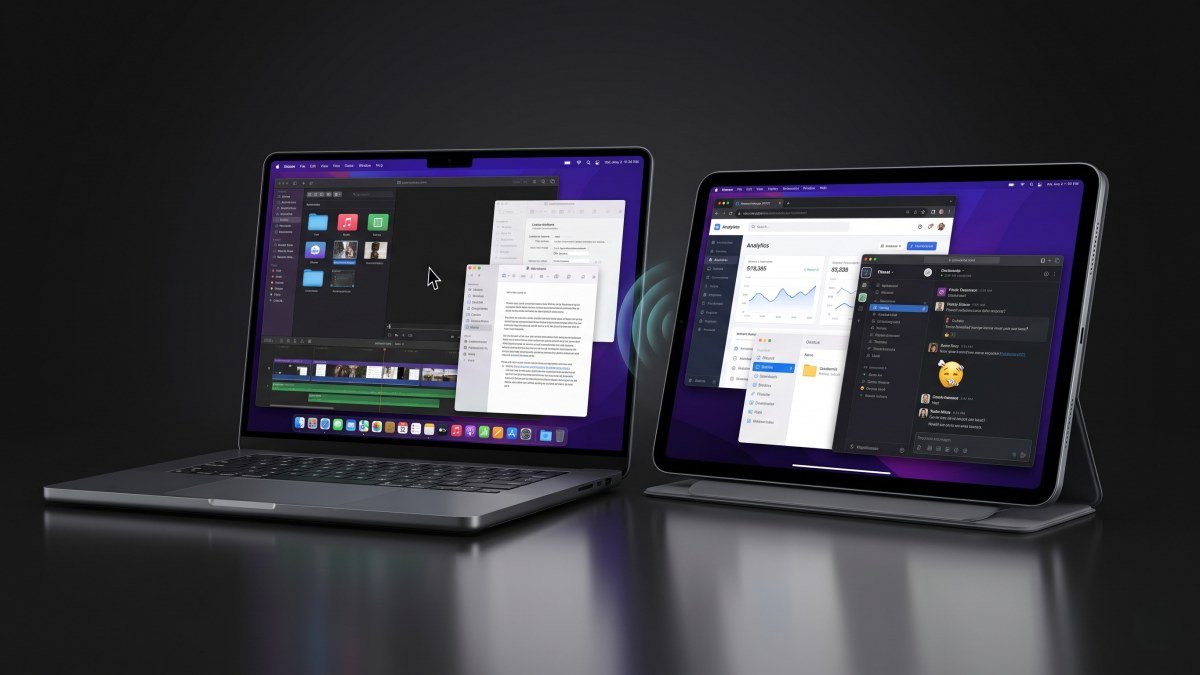
If you are fully invested in the Apple ecosystem, you do not need to download any third-party software. Apple's built-in Sidecar feature offers a flawless, zero-latency wireless connection between your Mac and your iPad.
- Verify Prerequisites: Ensure both your Mac and iPad are signed into the exact same Apple ID, have Bluetooth enabled, and are connected to the same Wi-Fi network.
- Open Display Settings: On your Mac, click the Apple logo in the top-left menu bar, select System Settings, and navigate to the Displays menu.
- Add the iPad: Click the '+' (Add Display) dropdown button on the right side of the menu and select your iPad from the list of available devices.
- Adjust Alignment: Drag the digital display boxes to match the physical placement of your iPad on your desk (so your mouse moves correctly from left to right).
*Verification:* Your Mac's desktop wallpaper will instantly appear on the iPad screen, and you can seamlessly drag your mouse cursor across the boundary between the two devices.
Method 2: Windows to Android or iPad (Spacedesk)
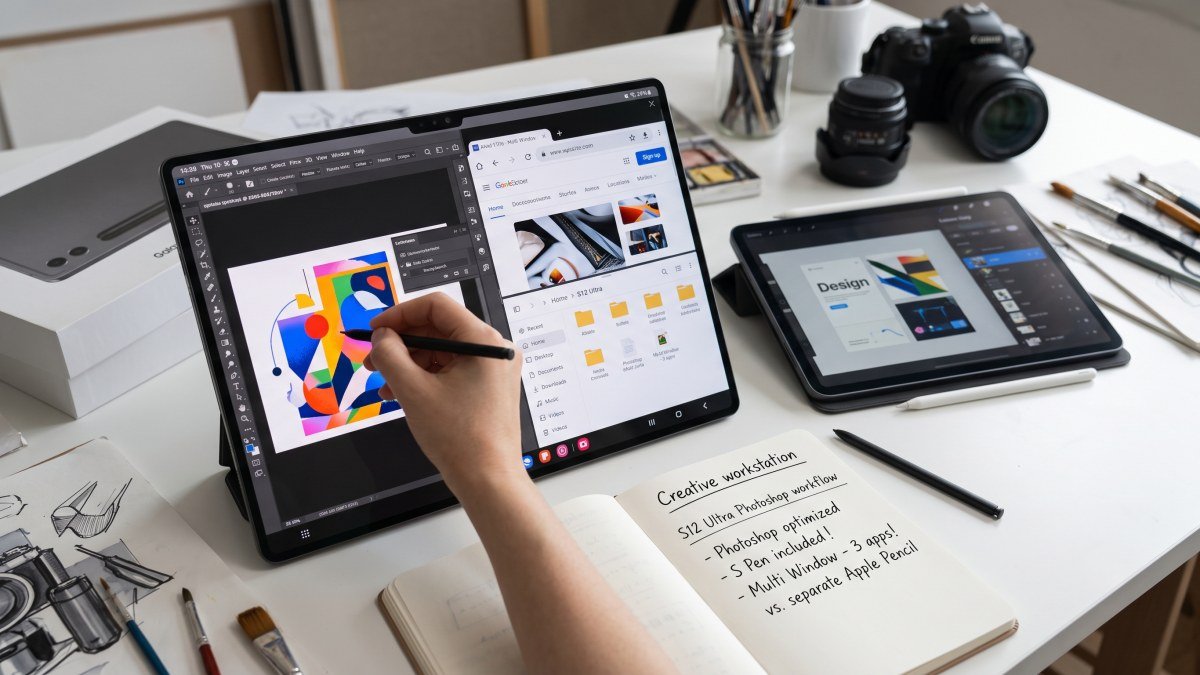
If you are using a Windows laptop alongside an Android device—like the upcoming tablets compared in our Galaxy Tab S12 Ultra vs iPad Pro multitasking guide—Spacedesk is the most reliable, completely free software for a wireless monitor extension.
- Install the Windows Driver: Visit the official Spacedesk website on your Windows PC and download the "Spacedesk Driver Software for Windows Primary PC". Run the installer and restart your computer.
- Download the Tablet App: Open the Google Play Store (or Apple App Store if using an iPad) and install the free "Spacedesk (multi monitor display extension)" application.
- Connect the Devices: Ensure both devices are connected to the exact same Wi-Fi network. Open the Spacedesk app on your tablet; it will automatically scan your local network for the host machine.
- Initiate the Extension: Tap your Windows PC's name or IP address when it appears in the tablet app's connection list.
*Verification:* You will hear the standard Windows "device connected" hardware chime, and your Windows desktop will appear on the tablet. Right-click your Windows desktop and select "Display Settings" to ensure the tablet is set to "Extend these displays" rather than "Duplicate".
Method 3: The Premium Wired Option (Duet Display)
If you are dealing with a heavily restricted corporate Wi-Fi network or demand absolute zero-latency performance for video editing, a hardwired connection via Duet Display is the industry standard. It works seamlessly across both Windows and Mac, supporting almost any tablet on the market.
- Install the Software: Download the Duet Display app on your tablet (requires a premium purchase) and the free companion software on your Windows or Mac laptop.
- Connect via Cable: Plug your tablet directly into your laptop using a high-quality, data-capable USB-C or Lightning cable.
- Launch and Grant Permissions: Open the Duet Display app on both devices. On macOS, you may be prompted to grant "Screen Recording" permissions in System Settings for the display rendering engine to function properly.
*Verification:* The tablet screen will refresh and display your extended desktop with flawless 60fps performance and zero wireless artifacting or lag.
Which Setup is Best For You?
To help you choose the right configuration for your specific hardware and budget, here is a quick breakdown of the three primary methods:
| Software Method | Hardware Compatibility | Connection Type | Cost |
|---|---|---|---|
| Apple Sidecar | Mac to iPad Only | Wireless or Wired | Free (Built-in to OS) |
| Spacedesk | Windows to Android / iPad | Wireless | Free |
| Duet Display | Mac / Windows to Android / iPad | Wired (Highly Recommended) | Paid Subscription |
Swipe sideways to see all table columns →
- Hardware Compatibility
- Mac to iPad Only
- Connection Type
- Wireless or Wired
- Cost
- Free (Built-in to OS)
- Hardware Compatibility
- Windows to Android / iPad
- Connection Type
- Wireless
- Cost
- Free
- Hardware Compatibility
- Mac / Windows to Android / iPad
- Connection Type
- Wired (Highly Recommended)
- Cost
- Paid Subscription
By leveraging these built-in tools and applications, you can instantly upgrade your remote workstation without spending a dime on dedicated external monitors. Whether you need a dedicated screen to monitor your Slack channels, keep your email open, or crunch data in Excel, an extended tablet display is the ultimate everyday productivity hack.